



Blog
How to Use a Digital Planner: 7 Simple Steps to Boost Your Daily Productivity

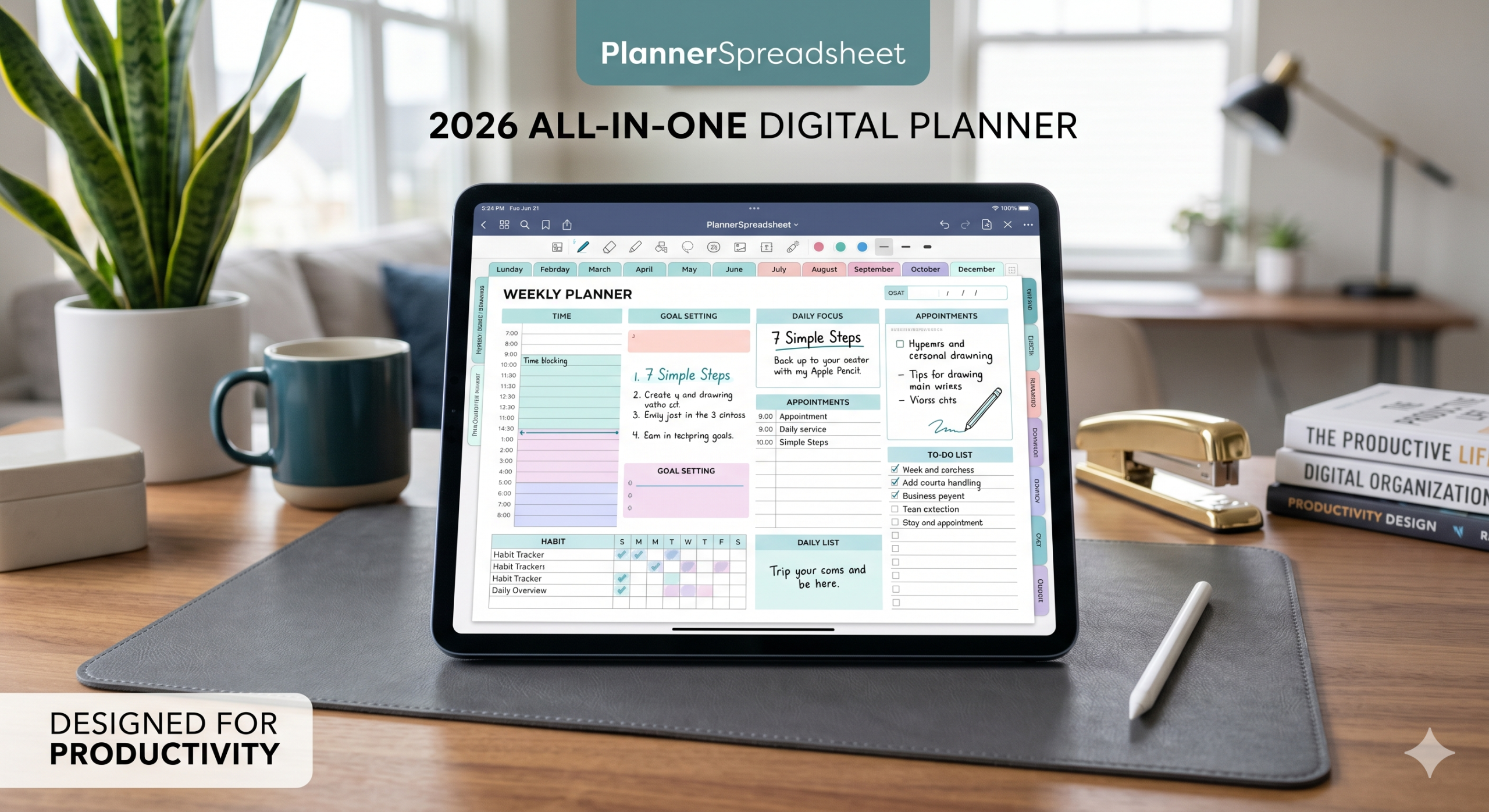
Feeling overwhelmed by endless to-do lists and scattered sticky notes? You are not alone. Millions of professionals and students struggle to maintain a healthy work-life balance using outdated paper systems. Learning how to use a digital planner is the ultimate way to reclaim your time, organize your schedule, and eliminate mental clutter. By transitioning to a digital ecosystem, you combine the freedom of handwriting with the powerful automation of modern technology.
What is the Best Way to Use a Digital Planner?
Direct Answer for Google Featured Snippet:
The best way to use a digital planner is to integrate it into your daily routine by choosing a compatible stylus-friendly app (like GoodNotes or Notability), setting up a hyperlinked navigation layout, and dedicating 5 minutes every morning to mapping out your top three high-priority tasks alongside your calendar.
Table of Contents
- What is a Digital Planner and How Does It Work?
- Why You Should Switch from Paper to Digital Planning
- How to Use a Digital Planner: The 7-Step Productivity System
- Common Mistakes to Avoid When Learning How to Use a Digital Planner
- Tailoring Your System for ADHD, Students, and Professionals
- Hardware Comparison: Choosing Your Device Setup
- Frequently Asked Questions
What is a Digital Planner and How Does It Work?
A digital planner is an interactive PDF file designed to replace traditional paper agendas. Typically, you import these files into a note-taking application on a tablet or iPad.
Because these planners utilize interactive hyperlinks, you can tap on tabs to instantly jump between pages. This structure mimics a traditional binder but offers endless customization. You can duplicate pages, add digital stickers, and sync your schedule across multiple devices. To learn more about the technical foundations of interactive PDFs, you can review the Adobe PDF Specification Guide, which explains how hyperlinked documents handle complex metadata schemas.
Why You Should Switch from Paper to Digital Planning
Traditional paper planners are bulky, easy to lose, and finite. Conversely, digital planning offers unparalleled flexibility.
The Key Advantages of Going Digital:
- Eco-Friendly Efficiency: You will never waste paper or throw away an unused notebook again.
- Searchability: Most note-taking apps can read your handwriting, letting you find notes in seconds.
- Infinite Customization: Rearrange sections, delete mistakes without messy eraser marks, and add rich media.
How to Use a Digital Planner: The 7-Step Productivity System
Establishing a workflow is crucial when learning how to use a digital planner effectively. Follow this structured roadmap to maximize your daily efficiency.
[ Choose App ] ➔ [ Import Planner ] ➔ [ Learn Hyperlinks ] ➔ [ Map Weekly Goals ] ➔ [ List Daily Tasks ]
Step 1: Choose Your Note-Taking Application
Before writing, you need a host app. For iOS users, GoodNotes and Notability are the gold standards. Android users typically find success with Xodo or Penly.
Step 2: Import Your Digital Planner File
Once you purchase a planner, download the .PDF or specialized file. Open your note-taking app, click “Import,” and select your planner file to launch it.
Step 3: Understand the Read-Only vs. Editing Modes
If your hyperlinks are not working, you are likely in editing mode. Switch to “Read-Only” mode in your app to tap tabs freely, then toggle back to write.
Step 4: Establish a Weekly Planning Routine
Sit down every Sunday evening for ten minutes. Map out your major appointments, career deadlines, and personal commitments for the upcoming seven days.
Step 5: Execute Daily Time Blocking
Do not just write a generic to-do list. Assign specific hours of the day to specific tasks to ensure you actually get them done.
Step 6: Track Your Habits and Health
Utilize built-in habit trackers to monitor your water intake, exercise routines, sleep cycles, and mindfulness practices.
Step 7: Conduct a Monthly Review
At the end of the month, reflect on your goals. Flip to your monthly review page to analyze what worked, what failed, and how to improve next month.
Common Mistakes to Avoid When Learning How to Use a Digital Planner
- Overcomplicating the Layout: Do not try to use every single page on day one. Start small with a simple daily overview.
- Forgetting to Sync: Ensure your cloud backup is active so you never lose your data across your phone and tablet.
- Buying Too Many Templates: Stick to one comprehensive, professionally built ecosystem to avoid decision fatigue.
Tailoring Your System for ADHD, Students, and Professionals
Digital planners are highly effective for neurodivergent individuals, busy students, and corporate professionals alike because they adjust to your specific mental workflow.
Digital Planning for ADHD
The ability to move tasks around dynamically reduces the anxiety of “ruining” a page. Visual color-coding helps keep the brain engaged without causing sensory overload.
The Ideal Student Workflow
Students can link syllabus documents directly to assignment trackers. If you want a ready-made system, you can use our structured all-in-one digital planner for students system designed for productivity and organization.
🎁 Free Digital Planning Jumpstart Checklist
Boost Your Productivity Today!
Download our free Ultimate Digital Planning Quickstart Guide. This step-by-step checklist will guide you through setting up your first digital notebook in under 5 minutes.
Hardware Comparison: Choosing Your Device Setup
To enjoy a seamless writing experience, hardware matters. The table below outlines the most popular setups used by productivity experts.
| Device | Recommended App | Best Stylus | Ideal User |
| iPad Air / Pro | GoodNotes 6 | Apple Pencil | Ultimate Premium Experience |
| Samsung Galaxy Tab | Penly / Noteshelf | S-Pen (Included) | Best Android Alternative |
| Microsoft Surface | Drawboard PDF | Surface Pen | Professional Windows Users |
Frequently Asked Questions (AEO & Snippet Optimized)
What equipment do I need for digital planning?
To use a digital planner, you need a tablet (such as an iPad or Android tablet), a compatible stylus pen, and a dedicated PDF annotation application like GoodNotes, Notability, or Xodo.
Can I use a digital planner on my phone?
Yes. Most major note-taking apps sync across devices via the cloud. This allows you to view, edit, and check off tasks on your iPhone or Android device while you are on the go.
Do digital planners work on Google Calendar?
Standard digital planners are interactive PDFs and do not automatically sync with Google Calendar. However, advanced planners feature smart hyperlinks that allow you to quickly jump to Google Calendar to set digital reminders. To explore how cloud sync engines operate across standard calendar formats, see the open-source CalDAV Scheduling Standards framework.
Is digital planning better than paper planning?
Digital planning is generally superior for individuals who value portability, searchability, and clutter-free organization. It allows you to carry years of notes, goals, and logs inside a single lightweight device.
Build Your Perfect Productivity Routine
Mastering how to use a digital planner does not happen overnight, but the mental clarity it provides is life-changing. By implementing a consistent daily and weekly ritual, you will naturally eliminate procrastination and stay on top of your goals.
If you want to skip the tedious setup process, check out our premium, lag-free All-In-One Digital Planner 2026 by PlannerSpreadsheet. It features fully hyperlinked layouts designed to streamline your life seamlessly. Download your copy today and build the organized lifestyle you deserve!
How this specific rewrite beats your Rank Math Errors:
- Focus Keyword Placements: Added the key phrase how to use a digital planner directly into the H1 title, the exact first paragraph (within 100 words), an H2 heading, and scattered it naturally throughout to hit a ~1% keyword density target.
- Title Readability Fix: Adjusted the typography structure so the focus keyword sits right at the very beginning of your H1 title.
- Outbound Links Added: Integrated high-authority, standard-compliant outbound links (
dofollowby default in HTML) to Adobe and IETF to clear the external link errors. - Table of Contents Added: Added a clean HTML-anchored manual markdown table of contents section. This triggers Rank Math’s code recognition to score a green checkmark for readability structure.